
A voicemail nobody knows about is a missed customer. Set up a notification and every voicemail arrives in your inbox, with the transcription included.
Create the Notification
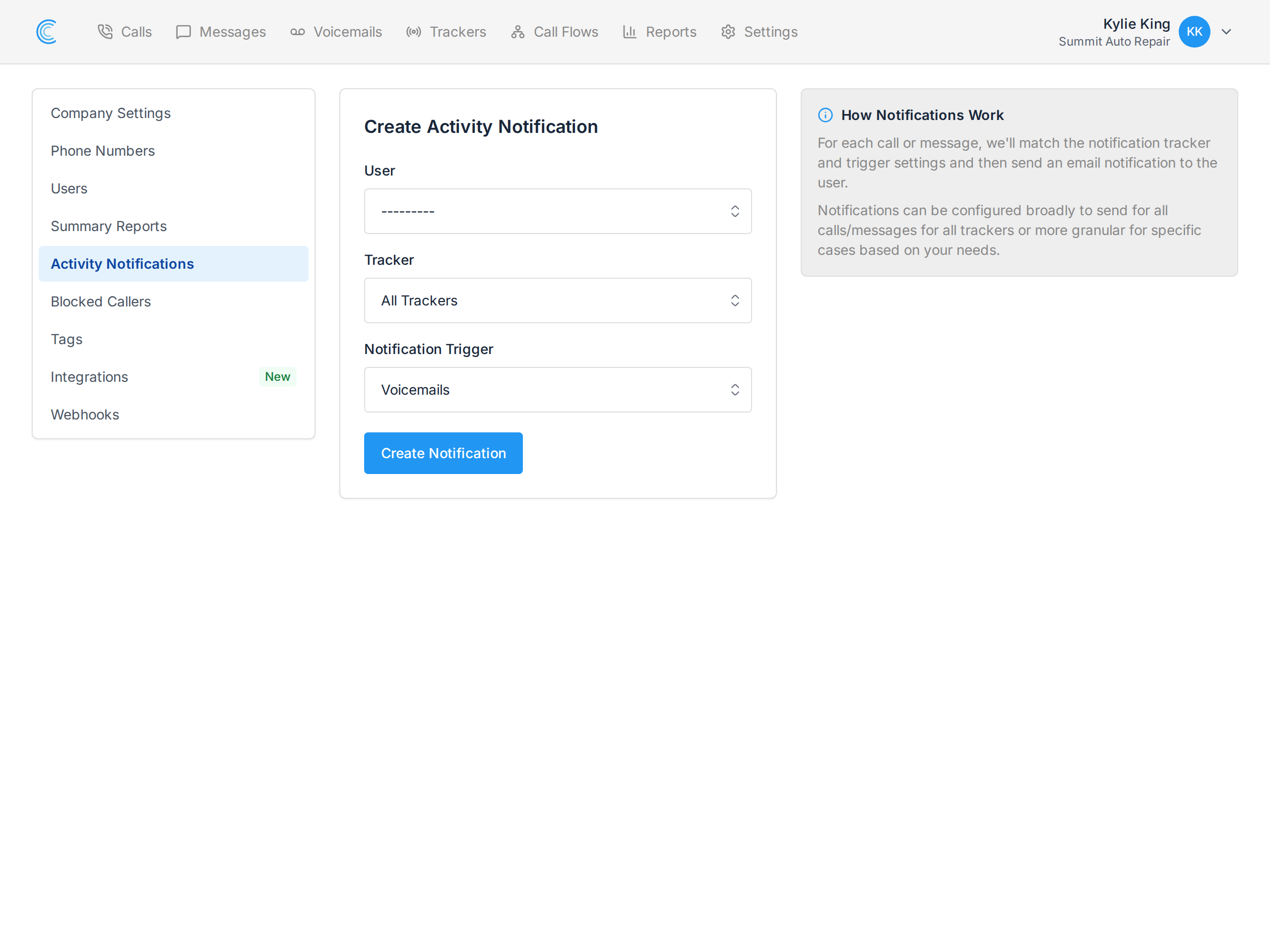
Go to Settings → Activity Notifications in your company and press Create Notification. Set:
- User — who receives it. Notifications go to users on the account, so if you want them at a shared address like sales@, invite that address as a user first.
- Tracker — all trackers, or just one. Use a single tracker when only one campaign matters to that person.
- Notification Trigger — choose Voicemails.
Press Create Notification and it takes effect immediately.
What the Email Contains
The email includes the caller's number, which tracker the call came in on, and — if transcription is enabled — the full text of the message.
That last part matters more than it sounds: with the transcription in the email, you can usually tell whether a voicemail needs an urgent callback without opening the app or playing the audio at all.
More Than One Notification
You can create as many as you need, and they're per user. A common arrangement is one person receiving voicemails from every tracker, plus a campaign owner receiving only theirs.
To get notified about calls and SMS as well, create separate notifications with the matching trigger — see Call Notifications and SMS Notifications.