
This is a step-by-step to setting up your first Tracker. Follow the instructions below to setup the tracker, choose the tracking type, tracking numbers, and get notified of new calls.
Start Tracker Setup
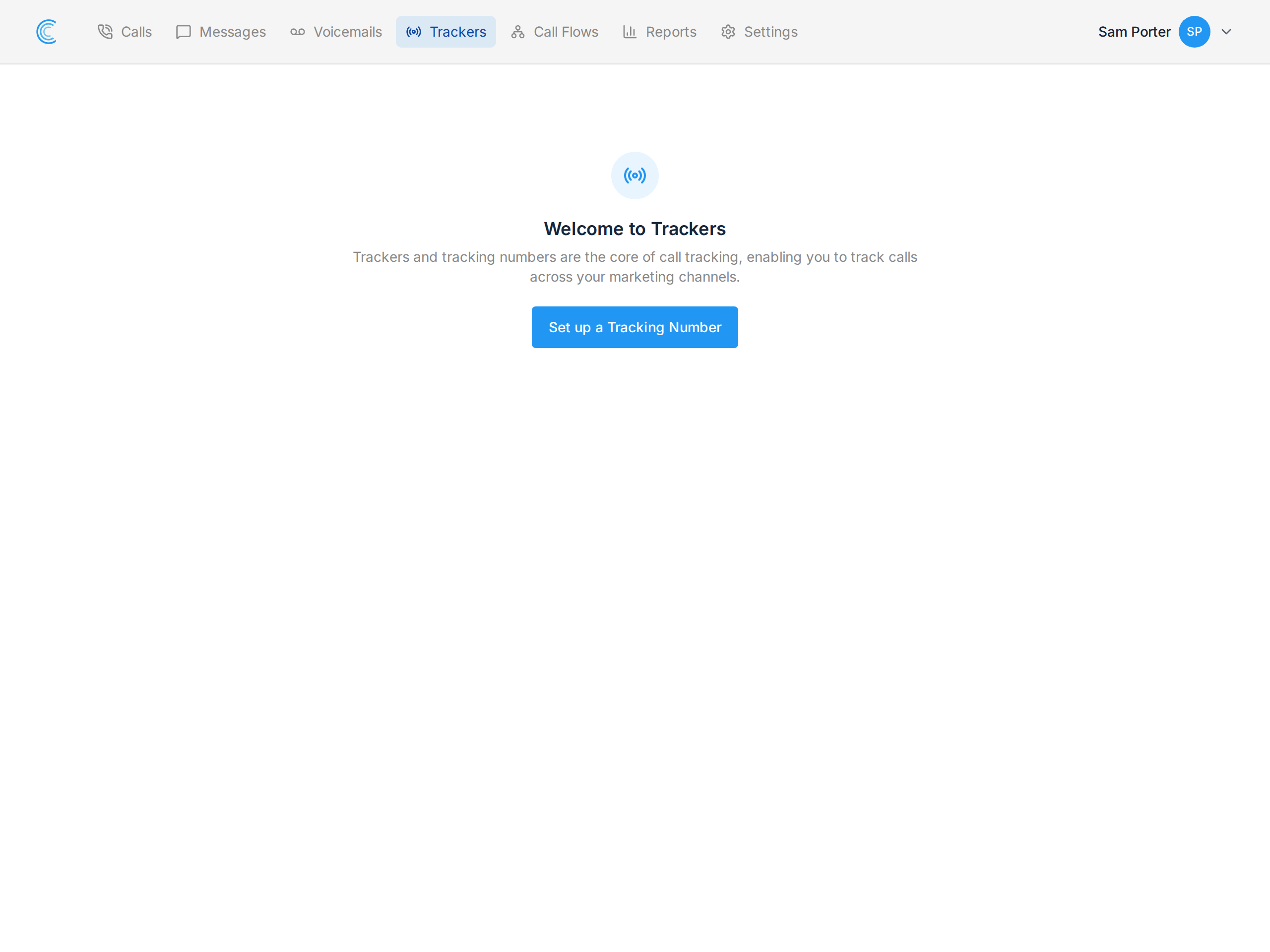
Follow the Setup Tracking Number button on your Trackers page to setup your first tracker.
Note For this tutorial, we're going to setup a Number Pool to track all traffic to our website and get the most insight into our PPC campaigns.
Online or Offline
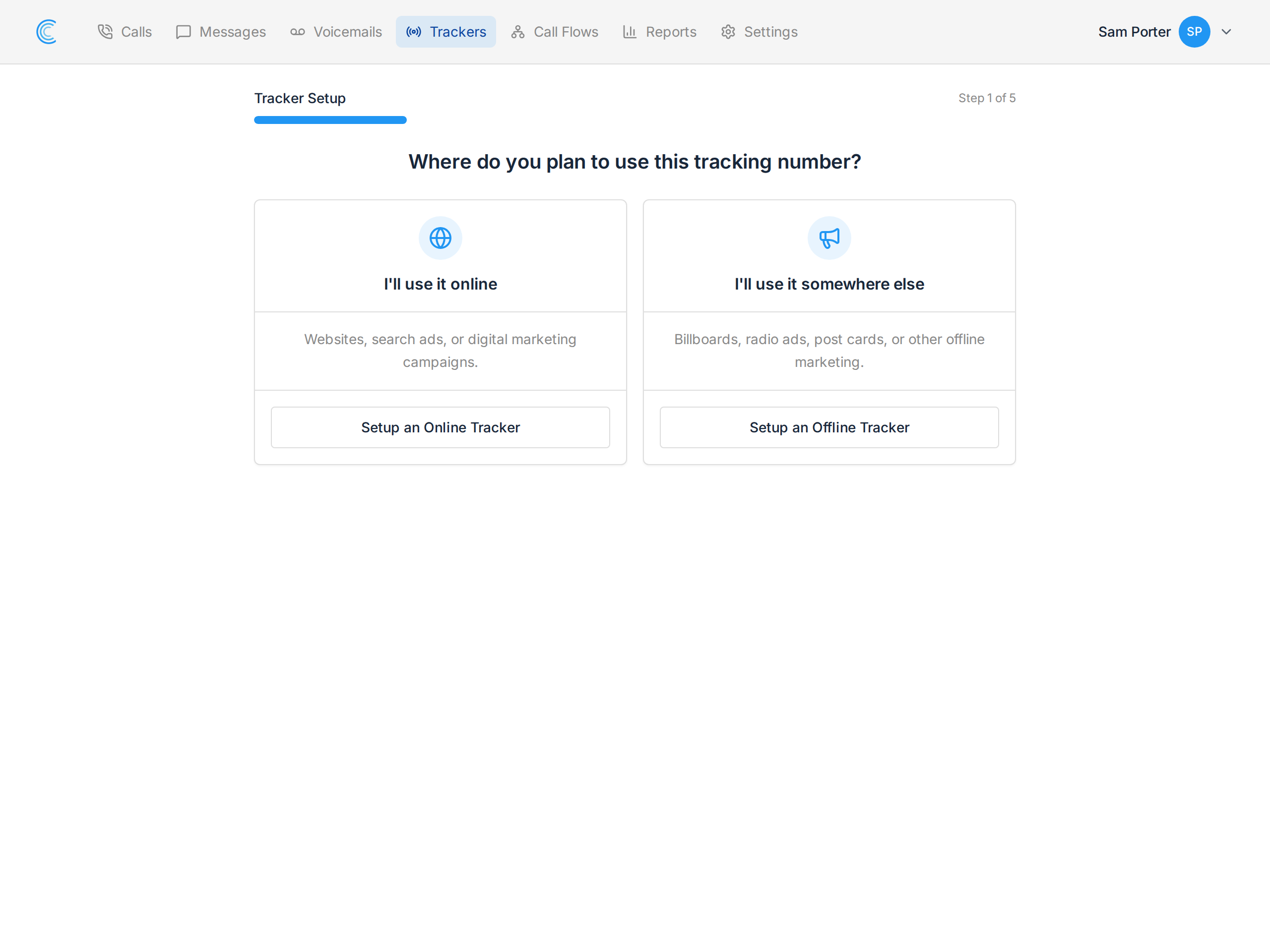
This first choice matters more than it looks. It decides how the tracking number reaches the caller, and that in turn decides how much you learn about where the call came from.
I'll use it online
Choose this for websites, search ads, and digital campaigns. You never publish the tracking number yourself — our Dynamic Number Insertion script swaps your real number on the page for a tracking number as each visitor arrives.
Because the swap happens in the visitor's browser, we already know how that person found you, and we attach it to the call:
- the source channel — organic search, paid search, referral, direct, social
- the search keyword, where the search engine passes one
- the landing page they arrived on
- the Google Click ID (gclid) for Google Ads, so calls can be sent back as conversions
Online trackers need the DNI script installed on your site. Without it there is nothing to swap and the tracker will never be shown.
I'll use it somewhere else
Choose this for billboards, radio and TV ads, direct mail, post cards, print, vehicle livery, trade show handouts — anywhere you print or say the number rather than a web page rendering it.
You publish the number yourself, so there's no visitor session behind the call and no web attribution to record. What you get instead is clean, and often all you need: every call to that number came from that one piece of marketing. Give each billboard or mailer its own offline tracker and the Calls by Tracker report tells you which one is working.
Offline trackers need no script and no website. They work the moment the number is live.
Note A Campaign tracker and an Offline tracker can be switched to each other later in Tracker Settings, and the tracking number stays the same — so a number you've already printed keeps working. A Number Pool cannot be converted, in either direction: its type is locked once created, and no other tracker can be turned into one. Pick the pool deliberately.
Two kinds of online tracker
Choosing online leads to a second question, and the two options differ in how much detail you get per call:
- A Number Pool hands each visitor their own number from a small pool, so a call maps back to one specific visitor. That's what makes pages visited and the visitor's keyword available on the call.
- A Campaign tracker shows the same number to everyone matching a rule you set — say, all paid search traffic. Attribution then comes from the rule itself rather than from an individual visitor, so you know the call came from paid search but not which pages that caller read.
Both are covered below and in Setting up a Campaign Tracker.
Online Number Pool Setup
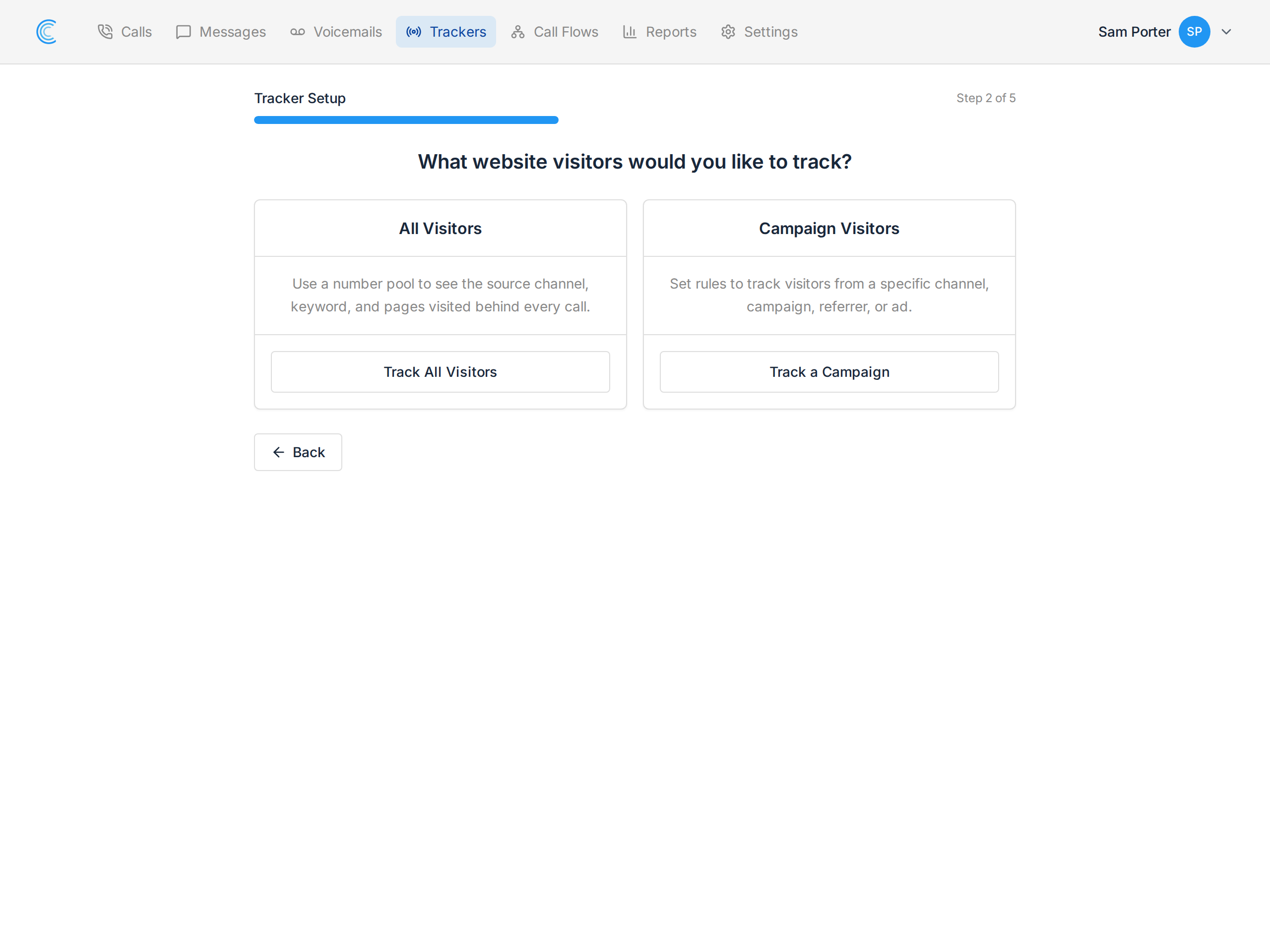
There are two types of online tracking, you can use a Number Pool to track all visitors or track a Campaign wherein you only show tracking numbers that match certain referrers, search channels, specific landing pages, and so on. For this tutorial, we're going to choose a Number Pool because we want to track all visitors and track calls for our Awords PPC campaigns.
Configure the Number Pool
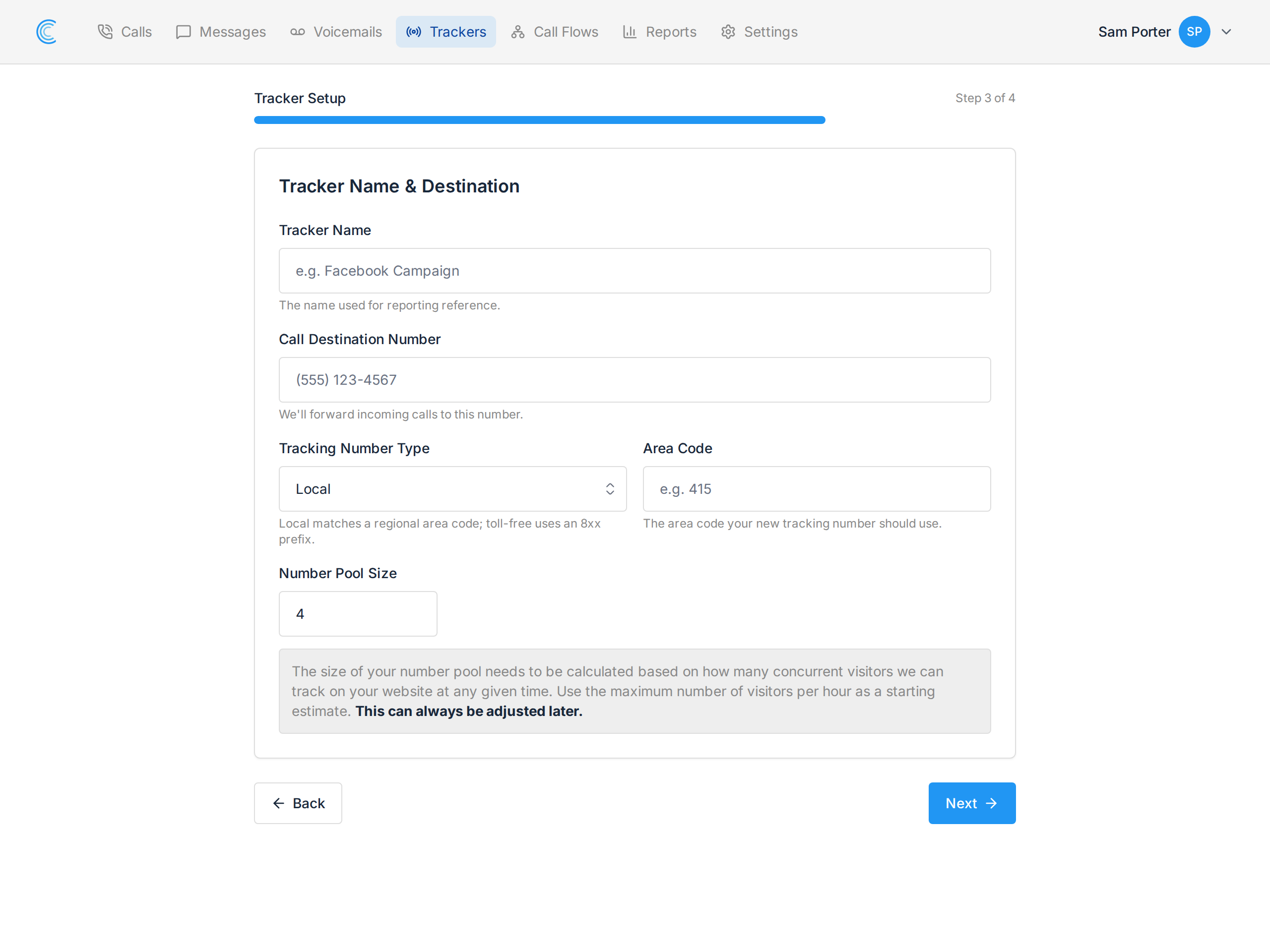
Number pools are quite simple to setup.
- Give it a Name, this how we'll refer to the tracker in all reporting and call details (this can be edited later).
- Add your Destination Number, this is the phone number that we'll forward incoming calls. Most people use their main business line here.
- Set the Pool Size (this can be adjusted from time to time to match your traffic requirements). The size of your number pool needs to be calculated based on how many concurrent visitors we can track on your website at any given time. The best way to estimate your pool size is to look at your website visitor tracking and use the maximum number of visitors per hour.
Whisper & Recording
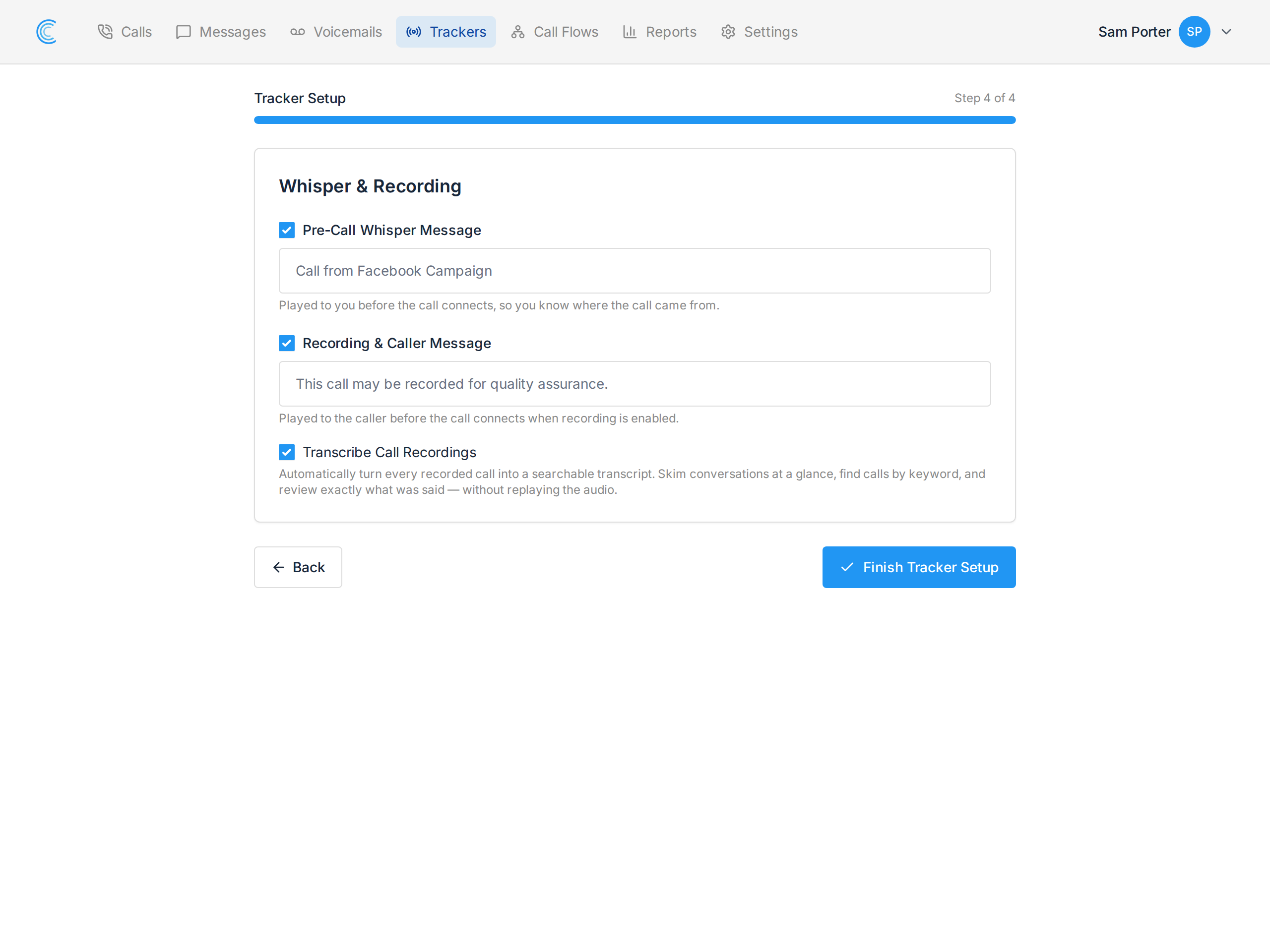
In the final step you decide what happens around the call itself. All three settings are optional, and all three can be changed later in Tracker Settings.
- Pre-Call Whisper Message - a short message played to whoever answers, which the caller cannot hear. Something like "Call from the Facebook campaign" tells your team where the call came from before they say hello, which matters when one phone answers for several trackers.
- Recording & Caller Message - records the call, and plays your message to the caller first. Recording laws vary by state, so read Call Recording and the Law before switching it on.
- Transcribe Call Recordings - turns every recorded call into a written transcript, laid out as a conversation with the caller and the person who answered shown separately. Read a call in a few seconds instead of playing back five minutes of audio. See AI Call Transcription.
Transcription only appears once recording is on, because there has to be audio to transcribe. Tick Recording & Caller Message first and the transcription option appears beneath it.