

If you run call tracking for clients, the Overview is where you work from. One page lists every company in your account, and every route into a client's data starts here.
It appears once the Agency Edition is on, for users with account admin access.
Finding It
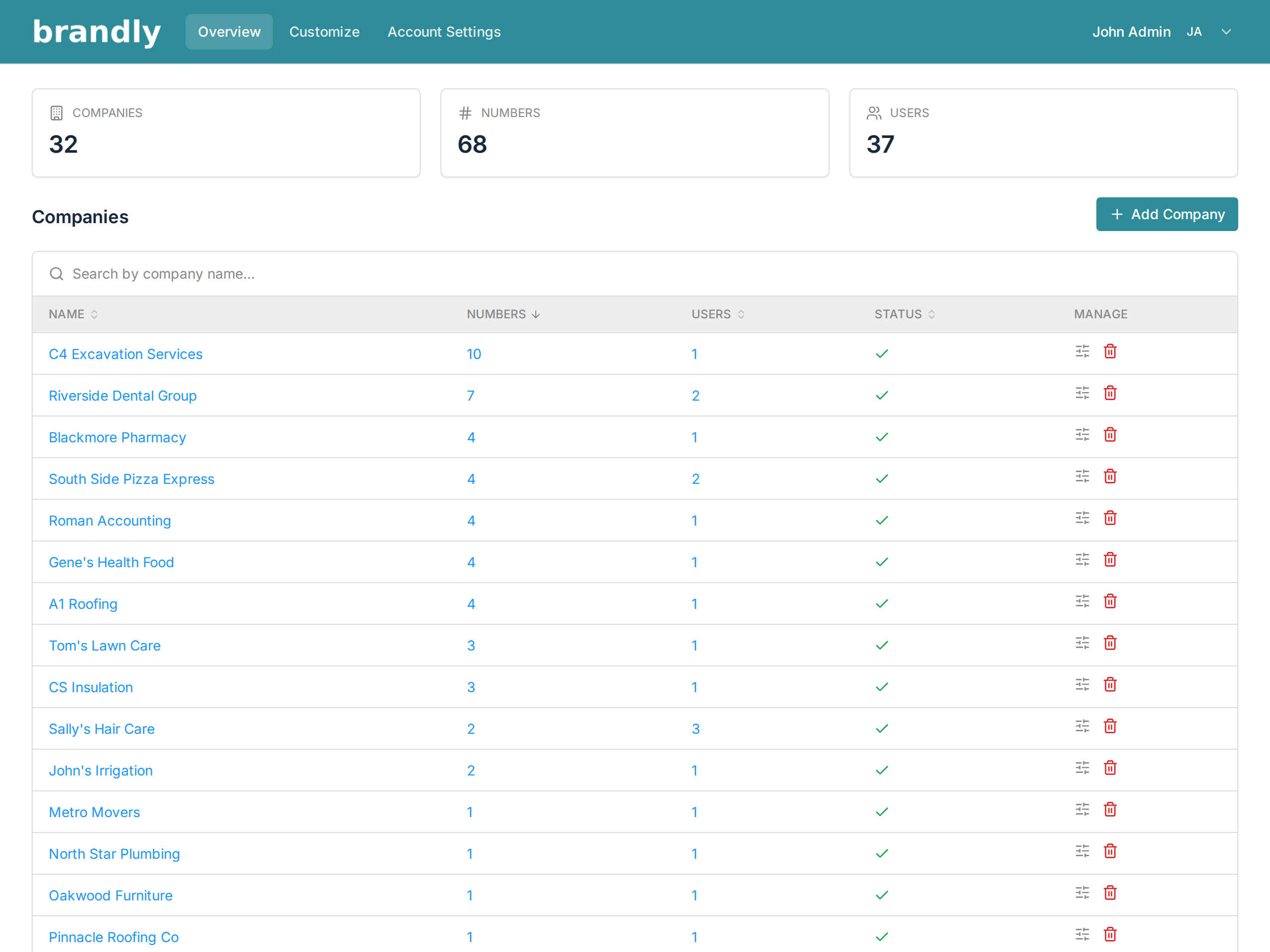
Click Overview in the top navigation bar. Your logo links here too.
Agency admins see a different top navigation from client users — Overview, Customize and Account Settings, instead of Calls and Reports. That's because you work across companies rather than inside one.
The Three Totals
The tiles across the top are account-wide:
- Companies — active client companies.
- Numbers — every active tracking number across all of them. This is what drives your bill, so it's the number to watch. See An Overview of Call Tracker Billing.
- Users — everyone with access to any company in the account, your own team included.
The tiles don't change when you search. They stay account-wide on purpose, so filtering the list below never makes you misread your totals.
The Company List
Each row is a client, and the blue figures are links, not just numbers:
| Column | Where it takes you |
|---|---|
| Name | that company's call log |
| Numbers | that company's trackers |
| Users | that company's user list |
| Status | active or inactive |
| Manage | company settings, or delete |
That's the fastest route into a client — one click from the list straight to their calls, rather than switching company and then navigating.
Sort by clicking a column heading. Sorting by Numbers is the useful one: it puts your heaviest clients at the top, which is where cost and attention both concentrate.
Finding a Client
Type into Search by company name above the table. It filters as a search, so a partial name works.
With more than 25 companies the list pages, so on a large book search is faster than scrolling.
Adding and Removing Clients
Add Company is at the top right of the list. See Adding Another Company.
The red bin icon in the Manage column deletes a company. It asks for confirmation first, and the warning is accurate — deleting a company will permanently:
- release all trackers and numbers, which cannot be undone; the numbers go back to the carrier and someone else can take them
- remove all users and their access
If a client is leaving but might come back, or you want their history, consider deactivating the company from its settings instead of deleting it.
Working Inside a Company
Once you open a client, the top navigation changes to that company's Calls, Reports and Settings, with a Companies link on the left to get back out. You always know which client you're looking at — their name sits in the bar beside it.