
Go to Billing
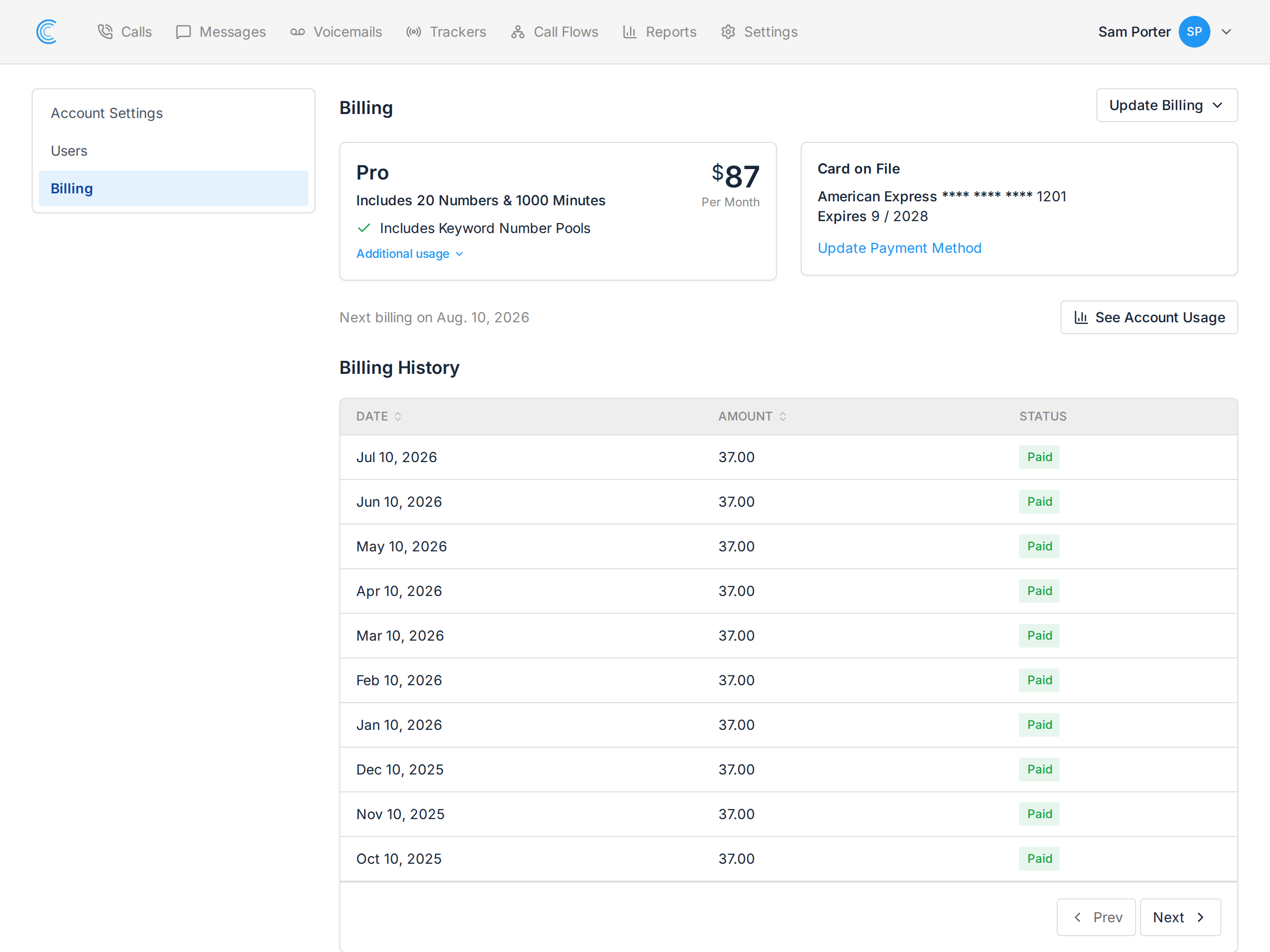
Click your name in the top right, choose Manage Account, then Billing in the left-hand menu.
This page shows your plan, the card you're currently paying with, your next billing date, and every invoice you've paid.
Open the Card Form
There are two ways in, and both land on the same form:
- Under Card on File, click Update Payment Method.
- Or use the Update Billing menu at the top right and choose Update Payment Method.
Enter the New Card
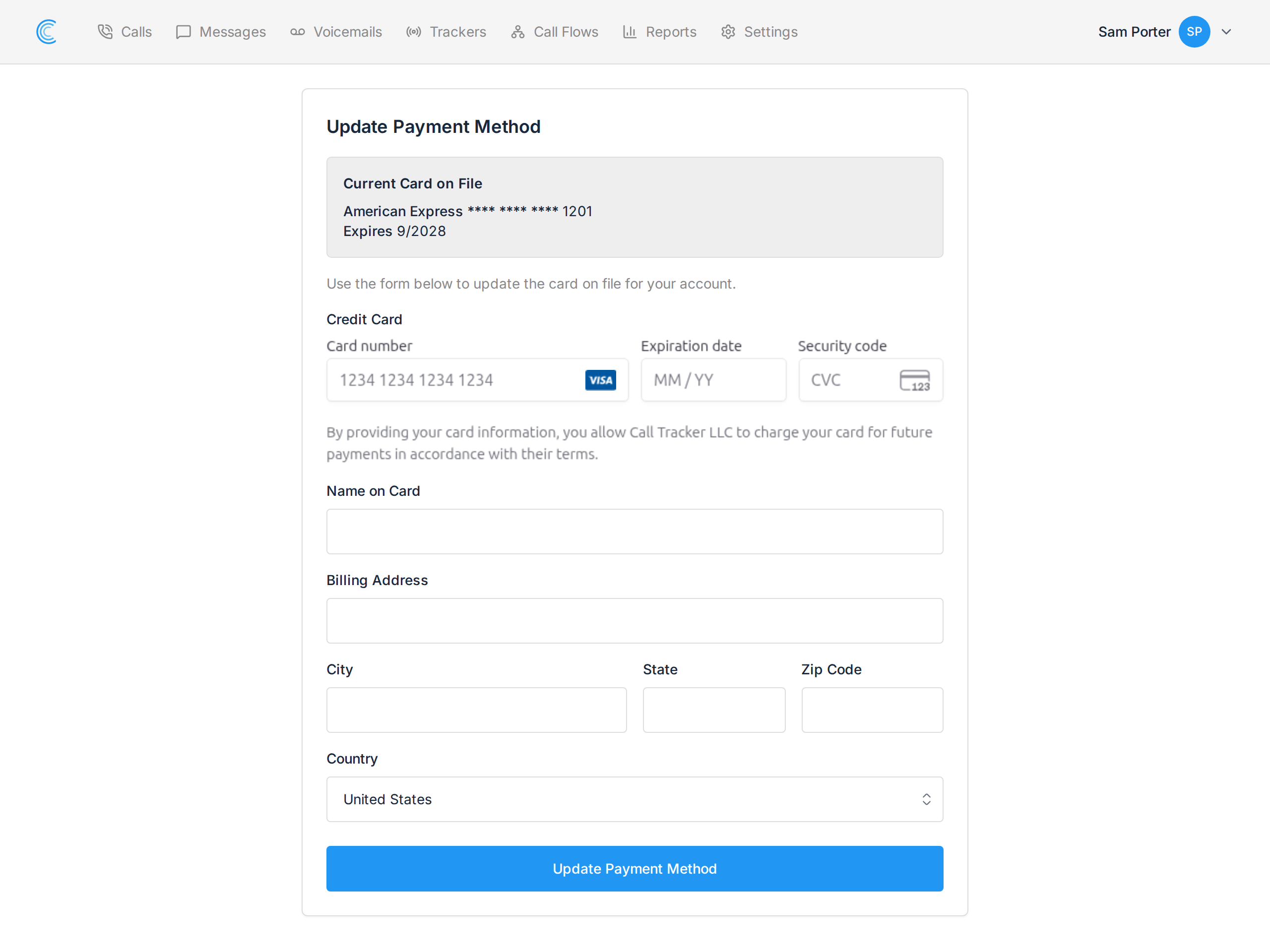
The form shows your Current Card on File at the top so you can check you're replacing the right one, then asks for:
- Card number, Expiration date and Security code
- Name on Card
- Billing Address
Fill it in and press the button at the bottom of the form. The new card replaces the old one immediately and is used for your next charge — there's nothing else to confirm, and no need to cancel anything first.
Before Your Card Expires
The expiry date under Card on File is worth a glance now and again. A card that expires between billing dates means a failed charge, and a failed charge can interrupt service on tracking numbers your marketing depends on.
Update it as soon as the replacement arrives rather than waiting for a payment to fail.
Checking a Charge
Billing History on the Billing page lists every invoice with its date, amount and status.
If an amount is higher than you expected, Account Usage breaks the same period down by company — tracking numbers, minutes, messages and transcription. The usual explanation is usage above your plan, or a tracking number still billing for a campaign that has ended. See An Overview of Call Tracker Billing.
Changing Plan or Cancelling
The same Update Billing menu holds Change Plan and Cancel Subscription. A plan change takes effect on your next billing date.
Note Only account admins see Billing. If it isn't in your menu, you have a company-level role — ask whoever owns the account. See Account User Management.