

The Calls by Time of Day report shows when your phone actually rings. It plots every call onto a grid of days and hours, so you can see the pattern at a glance rather than reading it out of a list.
It answers the questions a call list cannot: which day is busiest, which hour is busiest, and whether you have people available at the times customers are calling.
Calls by Time of Day Report
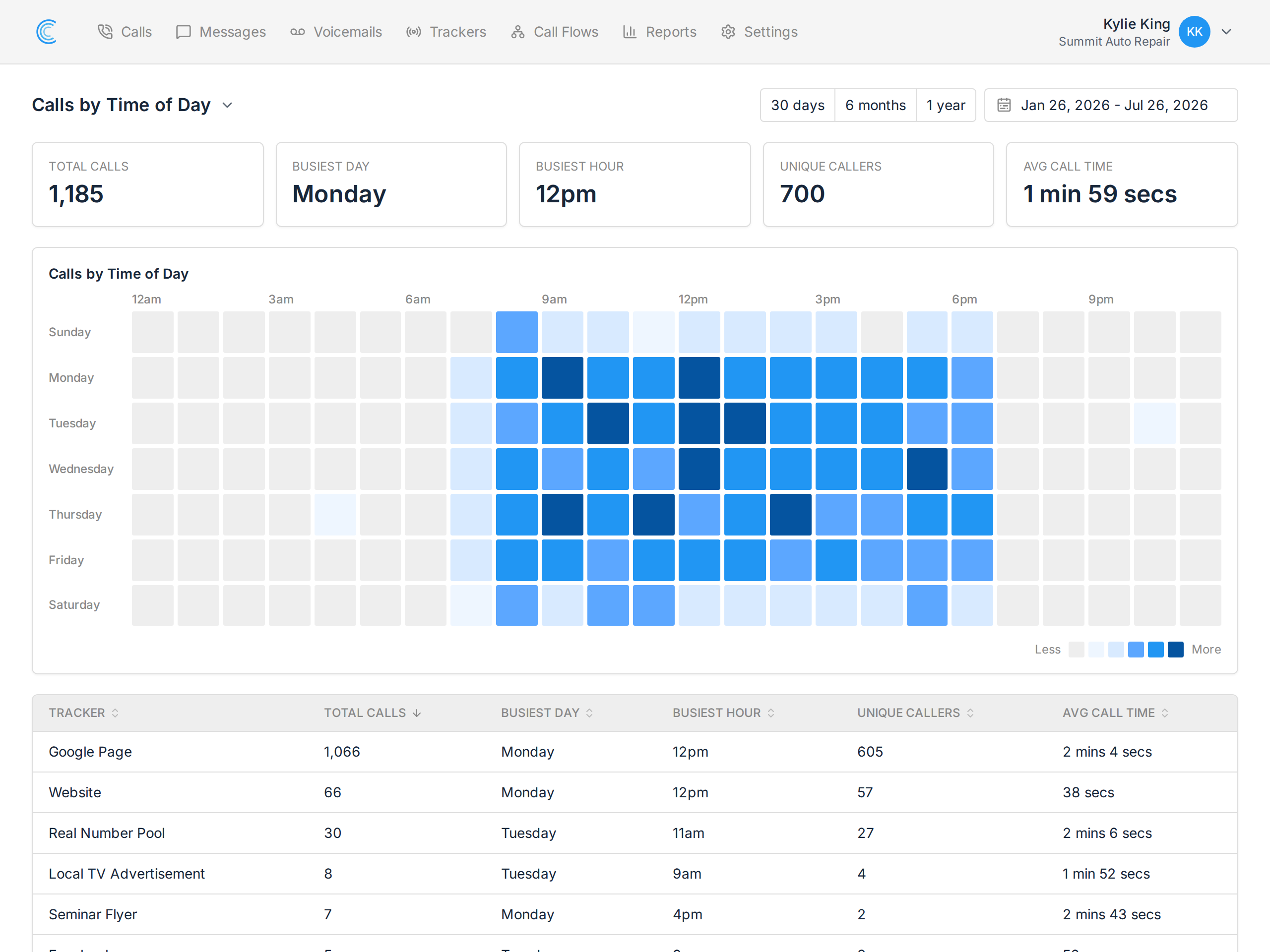
To access this report, click Reports in the navigation bar. Once in the Reports section, click the report title in the upper left of the screen to reveal a dropdown of all available reports, then select Calls by Time of Day. It is listed under Call Reports.
Across the top you'll see:
- Total Calls - all calls in the selected period.
- Busiest Day - the day of the week that took the most calls.
- Busiest Hour - the hour of the day that took the most calls.
- Unique Callers - how many different people called.
- Avg Call Time - average length of those calls.
Reading the Heatmap
The grid runs days of the week down the side and hours of the day across the top. The darker a cell, the more calls arrived in that hour on that day, with a Less / More key at the bottom right.
Empty cells mean no calls at all, which is just as useful — a run of blank early-morning cells tells you nobody is calling then, and a dark block at midday tells you where cover matters most.
Busiest Times per Tracker
Below the heatmap, the table breaks the same data down by tracker, with a Busiest Day and Busiest Hour column for each. This is where you find out that your billboard number peaks on a Saturday while your paid search number peaks on a Tuesday, which is difficult to spot from the combined grid.
Changing the Date Range
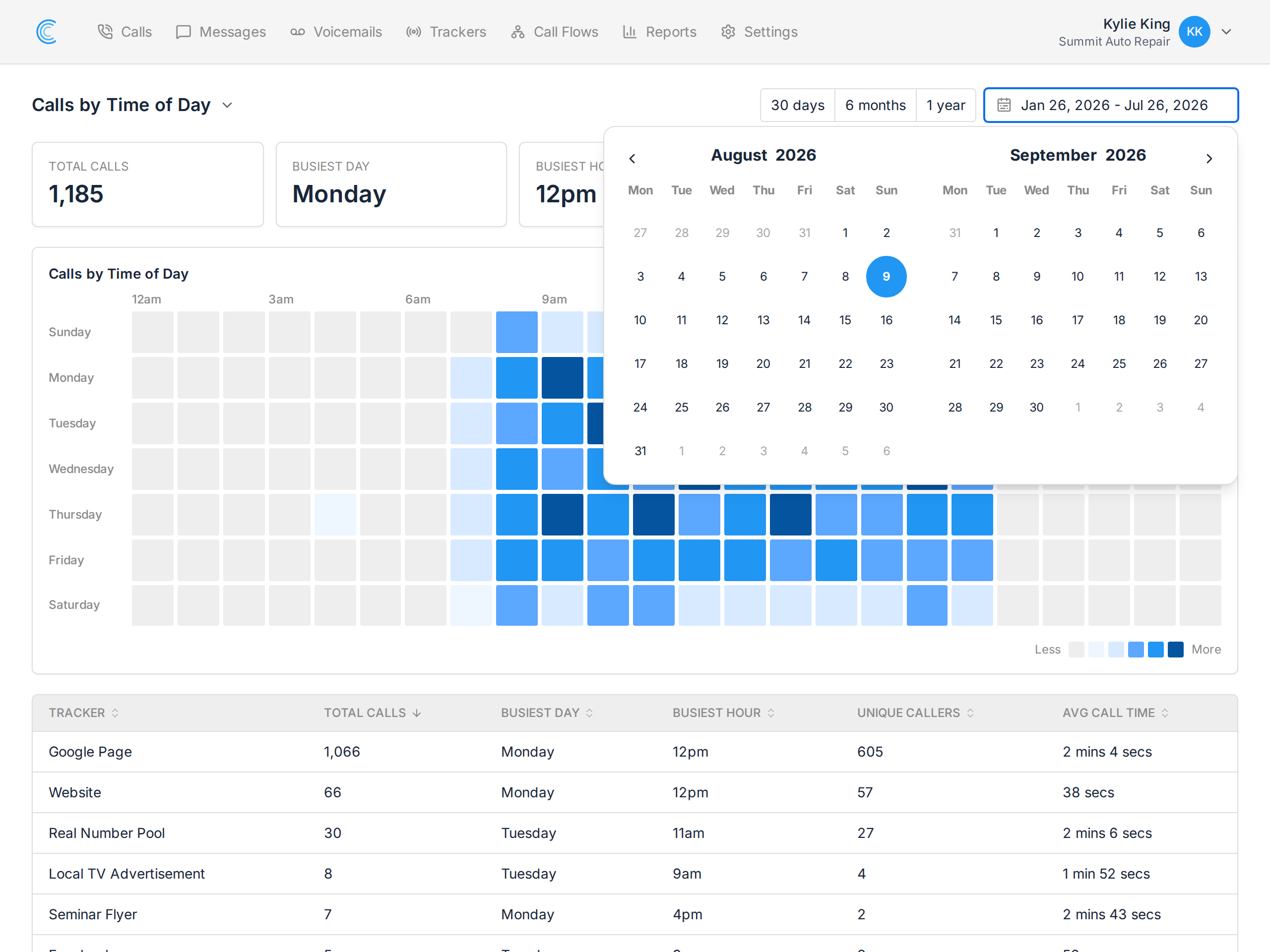
Use the 30 days, 6 months, and 1 year buttons for a quick range, or the date picker beside them to choose exact dates. A longer range smooths out one-off busy days and gives you a truer weekly pattern.
Unlike the other call reports, this one has no chart type selector — the heatmap is the only view.
Note Days and hours are shown in your company's timezone, set in your Company Settings. If a company's timezone is wrong, the busiest hour will be wrong with it.