

Call tracking is only worth the effort if someone acts on the calls. The review panel exists for that: work down a page of calls, listen or read each one, tag it, put a value on it, and move to the next — without ever leaving the list.
Opening the Review Panel
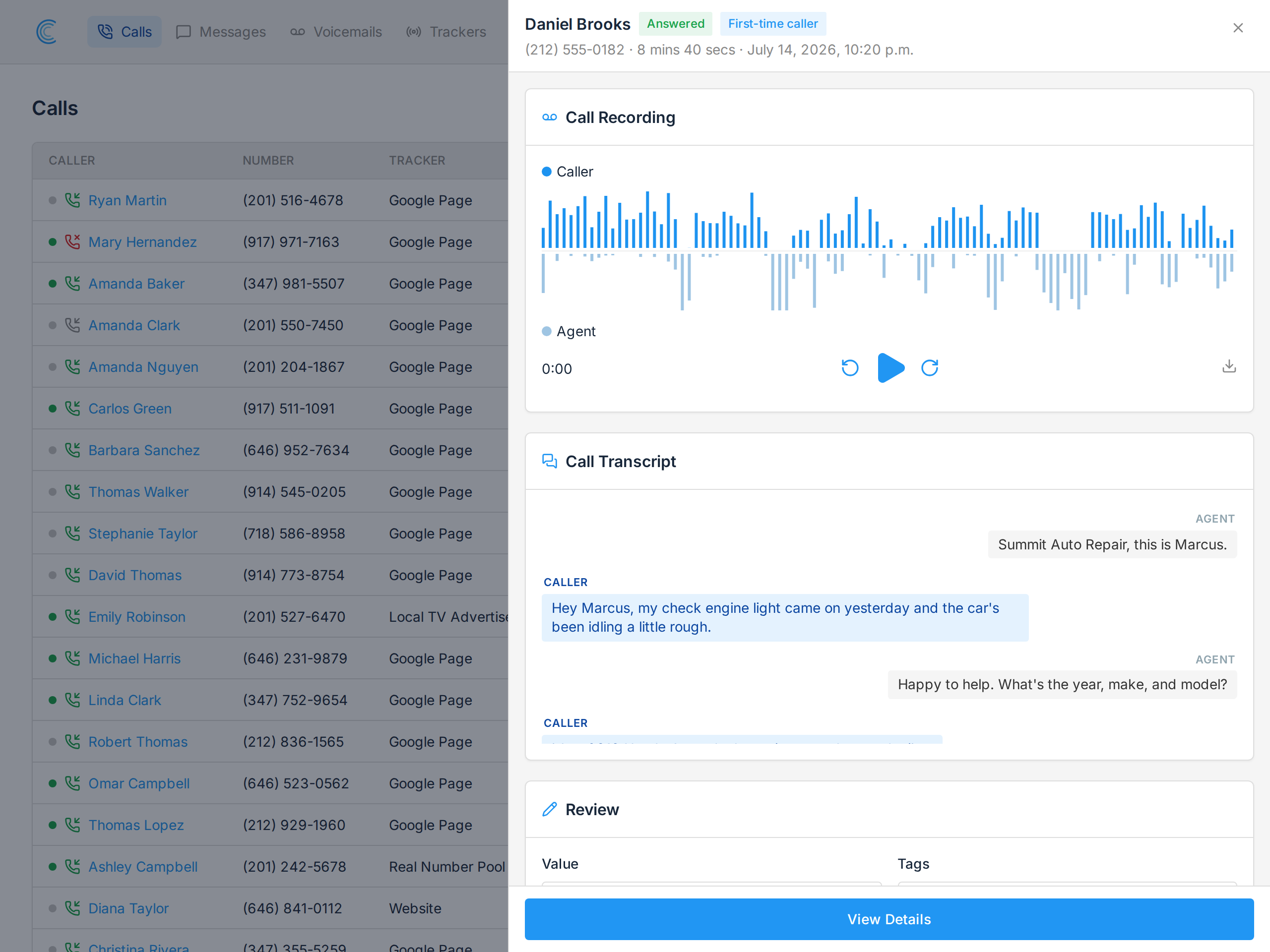
On the Calls page, press Add + in the Value or Tags column of any row. A panel slides out over the list with everything you need to judge the call:
- Call Recording — the caller and the person who answered are drawn as separate waveforms, so you can see who was talking and when.
- Call Transcript — read the conversation instead of playing it. As the audio plays, the transcript highlights the line being spoken. See AI Call Transcription.
- Review — the Value and Tags fields.
- Call Details and Web Source Details — who called, which tracker, and how they found you.
The list behind the panel does not move. Same page, same scroll position, same filters. Close the panel and you're exactly where you were. That's the whole design: reviewing forty calls shouldn't mean forty page loads and losing your place forty times.
Tagging and Valuing
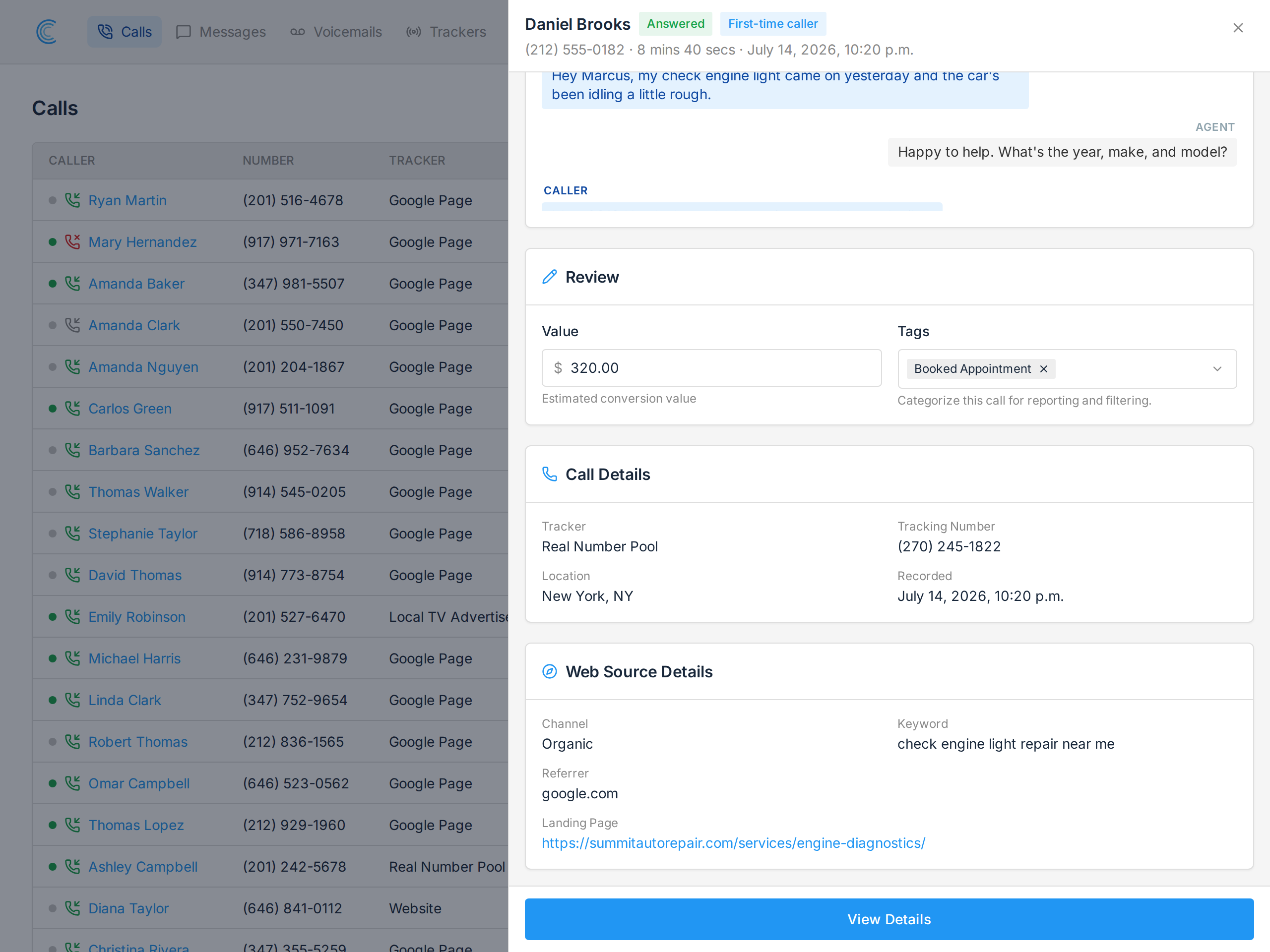
Both fields in the Review card save as you change them — there's no Save button to hunt for, and a short confirmation appears when the change is stored.
- Tags categorize the call for reporting and filtering. Pick from your company's tags; see Call Tags.
- Value is what the call was worth to you. Clearing the field is the same as zero — the list shows both as an "Add" prompt.
The row behind the panel updates immediately, so you can see your work land without closing anything.
Knowing What's Been Reviewed
Every row carries a coloured dot beside the caller's name. Green means nobody has opened it yet. Grey means someone has.
That dot is shared across your whole company, not per user. If a colleague reviewed a call this morning, it shows grey for you too. This is deliberate — it stops two people listening to the same call and lets a team split a busy day's calls without coordinating.
Opening the review panel marks the call reviewed. You don't have to do anything else.
Calls nobody could answer arrive already marked. An abandoned call — where the caller hung up before anyone picked up — has no recording to listen to, so it never joins the queue of things to review.
Working Through a List
The panel is built for repetition, so the efficient pattern is:
- Filter first. Narrow to what you care about — a single tracker, missed calls, a date range — using Filters at the top of the list.
- Work top to bottom. Open the first green dot, review it, close, move to the next.
- Export when you're done. The CSV export respects your filters, so a reviewed and tagged set can go straight to a spreadsheet or your CRM.
For a longer look at any single call — call notes, pages visited, marking it as spam — press View Details at the bottom of the panel to open the full call details page.
Note Changing a tag or value doesn't re-sort or re-filter the list while you're working. If you're filtered to a tag and you remove that tag from a call, the row stays put until you reload — which is usually what you want mid-review, rather than having rows vanish underneath you.