
To manage how you access your call data, you can manage your user details easily from the user profile settings.
Accessing your User Profile Settings
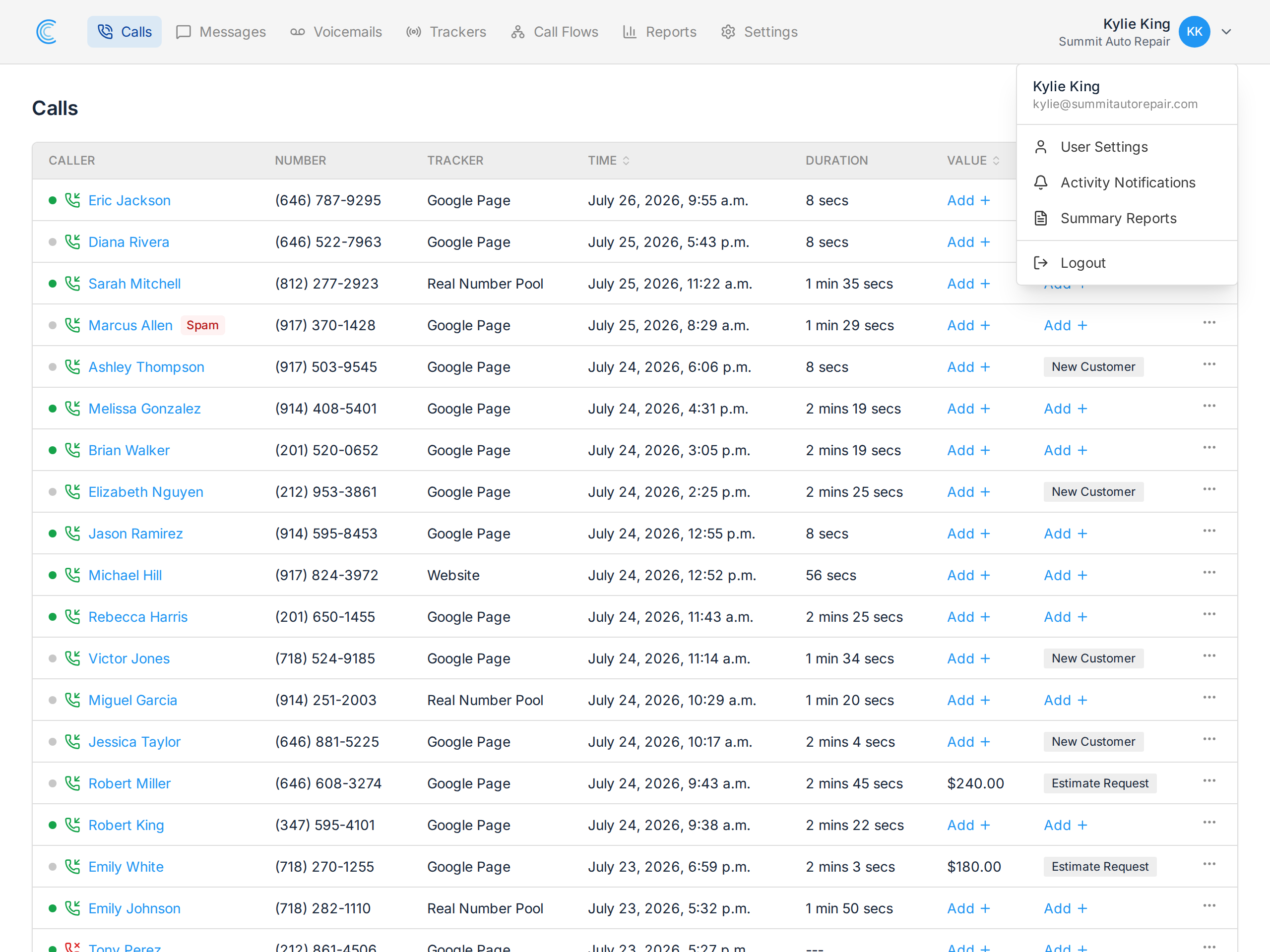
To access your user profile settings, click your name in the upper right hand corner of your screen and go to User Settings.
Updating your Name & Email
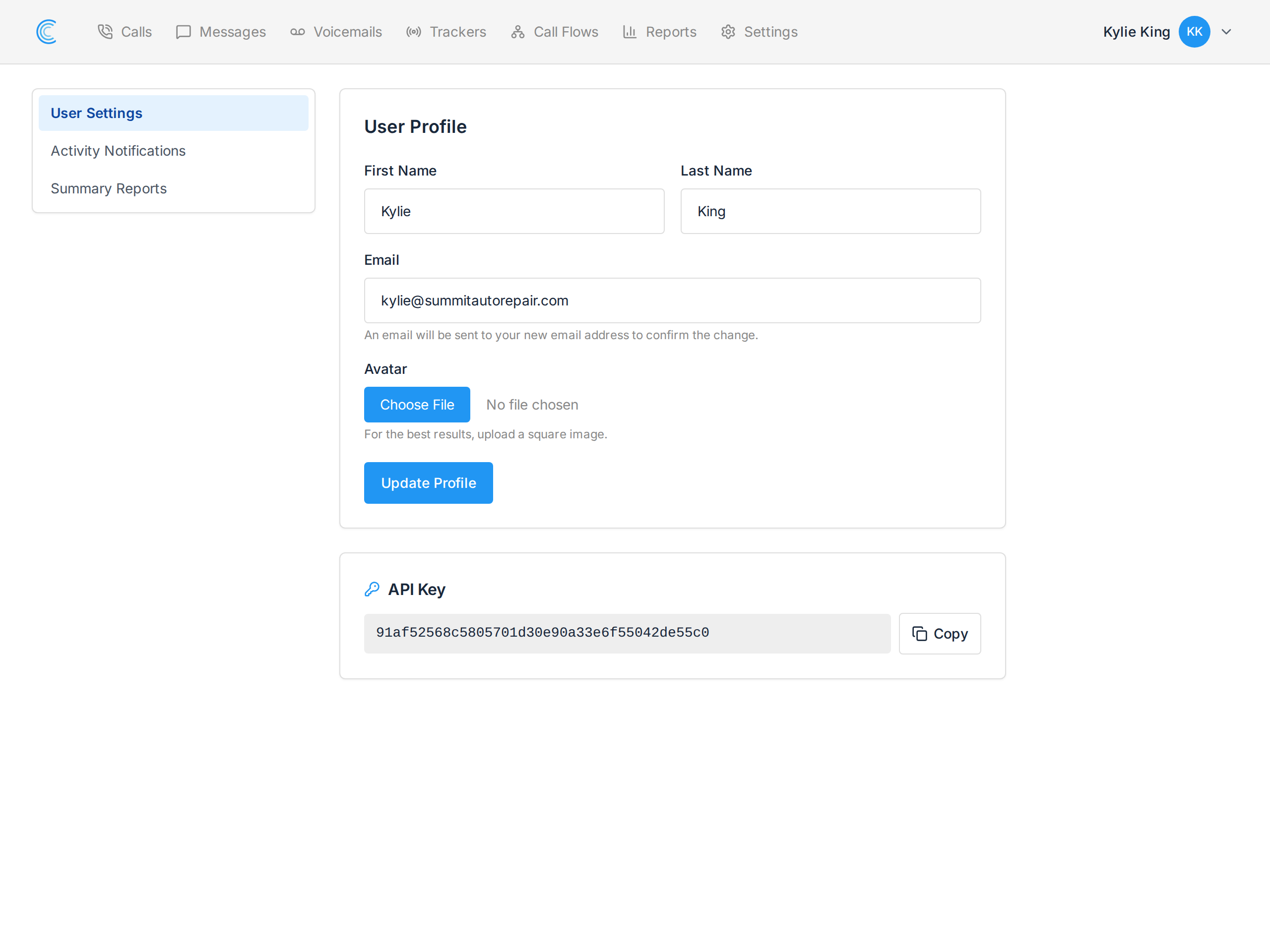
You're able to update your First Name, Last Name, and Email address, then press Update Profile to save.
When you change your email address, we send a confirmation email to the new address and your sign-in address stays unchanged until you confirm it. Until then, your profile shows the pending address with Resend and Cancel buttons.
Upload Your Photo
If you choose, you're able to upload a photo of yourself to personal your experience. For the best results, upload a square photo which we'll then downsize it fit the appropriate dimensions.
Your API Key
Your personal API Key is shown at the bottom of the User Profile page, with a Copy button. This is the key used to connect Call Tracker to Zapier and to our REST API.
How You Sign In
Call Tracker does not use passwords. You sign in with your email address and we send you a 6 digit login code, which is valid for 5 minutes. Enter the code and you're in.
You can also use Sign in with Google if your email address is a Google account.
Because there is no password, there is nothing to update here — keeping your email address current is all that is needed to keep access to your account.