

A Menu step turns your tracking number into a phone menu — "For Service, press 1. For Parts, press 2." This is what's usually called an IVR, and it lets one number serve several teams instead of everything landing on the same phone.
Each option branches into its own set of steps, so pressing 1 can ring the shop and fall through to voicemail, while pressing 2 rings a different number entirely.
Add a Menu Step
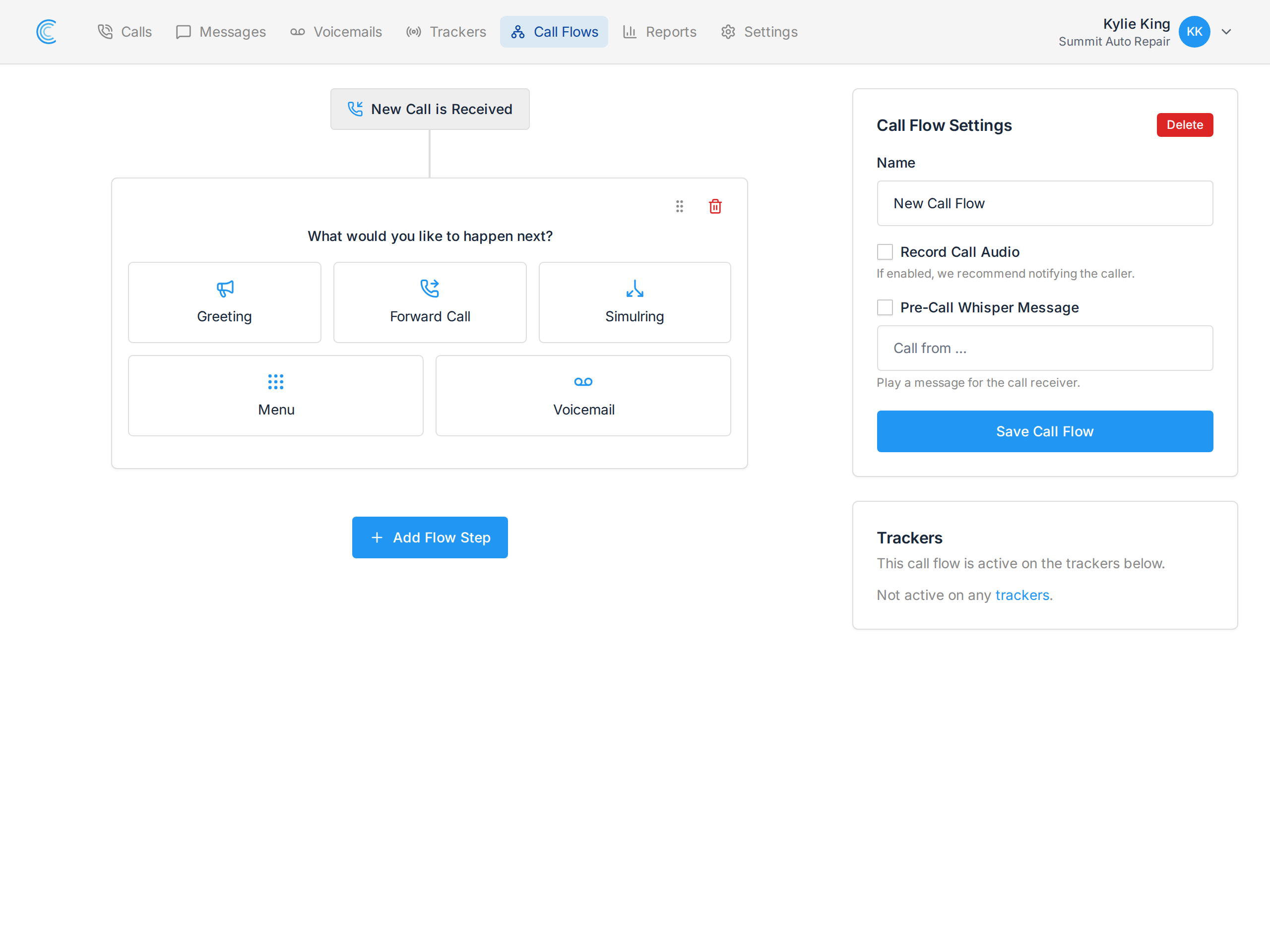
In your Call Flow, press Add Flow Step and choose Menu.
A menu has to be the last step in its chain. Everything that happens after the caller presses a key lives inside that option's branch, not after the menu.
Add Your Options
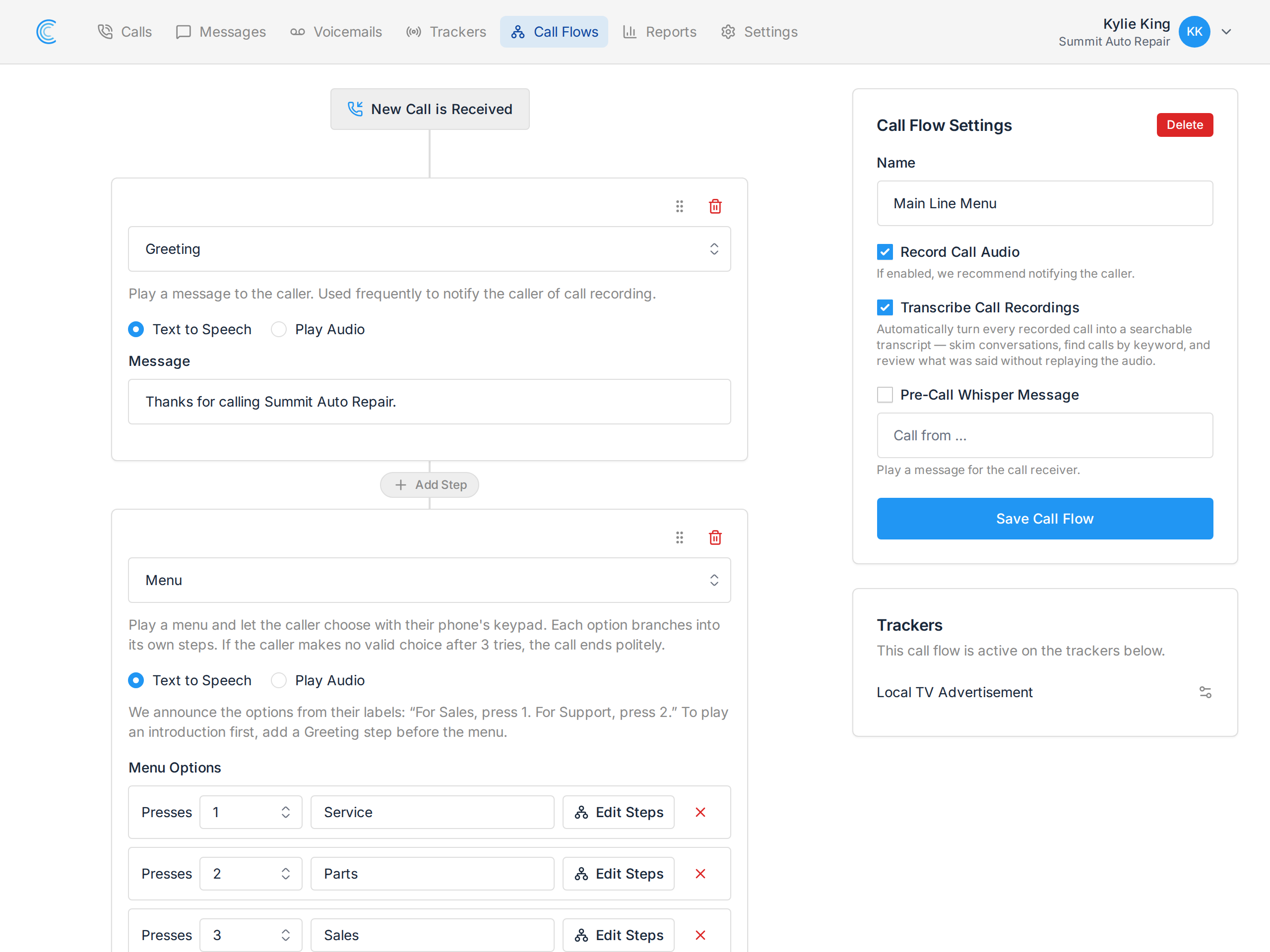
Under Menu Options, add a row per key you want to offer:
- Presses - the key the caller presses, 0 to 9.
- Label - what that option is for, such as Service or Parts. This is the wording callers hear.
- Edit Steps - opens that option's branch so you can build what happens next.
Press Add Menu Option for each extra key, and the red × to remove one. Adding an option saves the flow and creates that key's branch straight away.
What the Caller Hears
With Text to Speech selected, we generate the prompt from your option labels:
For Service, press 1. For Parts, press 2. For Sales, press 3.
You do not type the menu message yourself. It's built from the options, so the words callers hear can never drift out of step with the keys that actually work — rename an option and the prompt renames with it.
To say something before the menu, add a Greeting step before the Menu step. In the screenshot above, the greeting "Thanks for calling Summit Auto Repair." plays first, then the menu reads out the options.
Choosing Play Audio instead lets you upload a recording of your own menu prompt. In that case the recording is what plays, so make sure it matches your options.
Building Each Branch
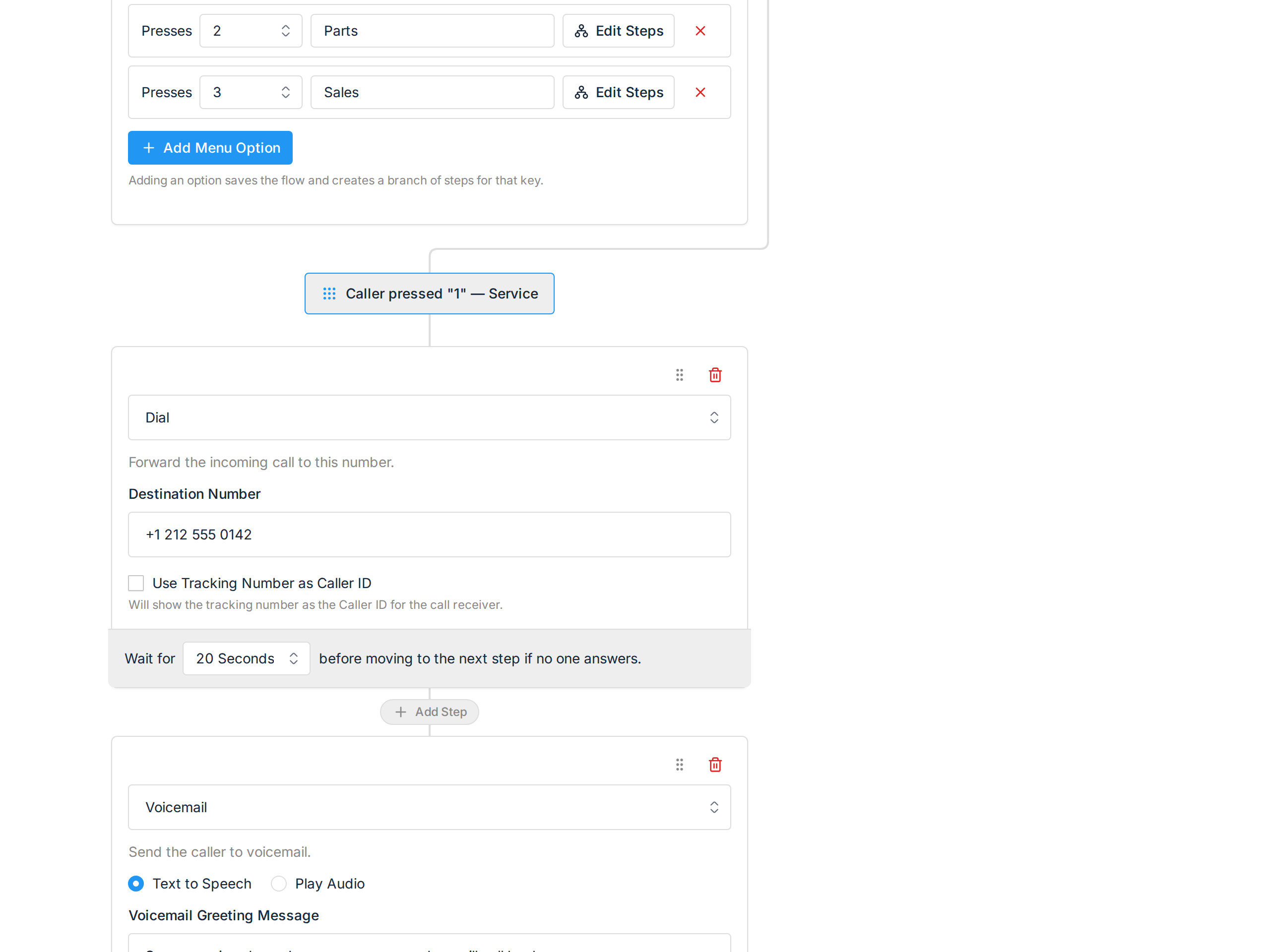
Press Edit Steps on an option and that key's branch opens below the menu, headed Caller pressed "1" — Service. From there it's an ordinary call flow. The Service branch above is:
- Forward Call to the workshop line, waiting 20 seconds.
- Voicemail if nobody picks up.
Branches are built on the same page as the menu itself, so the whole tree stays in one place. They don't appear as separate entries in your Call Flows list.
Note A branch can use Greeting, Forward Call, Simulring and Voicemail steps, but not another Menu — menus cannot be nested inside one another.
If the Caller Doesn't Choose
The menu waits 5 seconds for a keypress. If the caller presses nothing, or presses a key you haven't configured, the menu is repeated.
After 3 attempts we stop asking, play "Sorry, we were unable to complete your call. Goodbye." and end the call.
Keep menus short for that reason — three or four options is usually plenty. A long menu is harder to remember than it is to record, and callers who lose track end up hearing the goodbye message instead of reaching anyone.
Using the Menu on a Tracking Number
A Menu step is part of a Call Flow, so you point a tracker at the flow the same way as any other. See Use a Call Flow with a Tracking Number.