
Call Tracker can be rebranded to look like your own product. Your clients sign in on your domain, see your logo in the header, and get call notification emails in your colours — the Call Tracker name never appears.
Everything below lives on one page.
Open the Branding Page
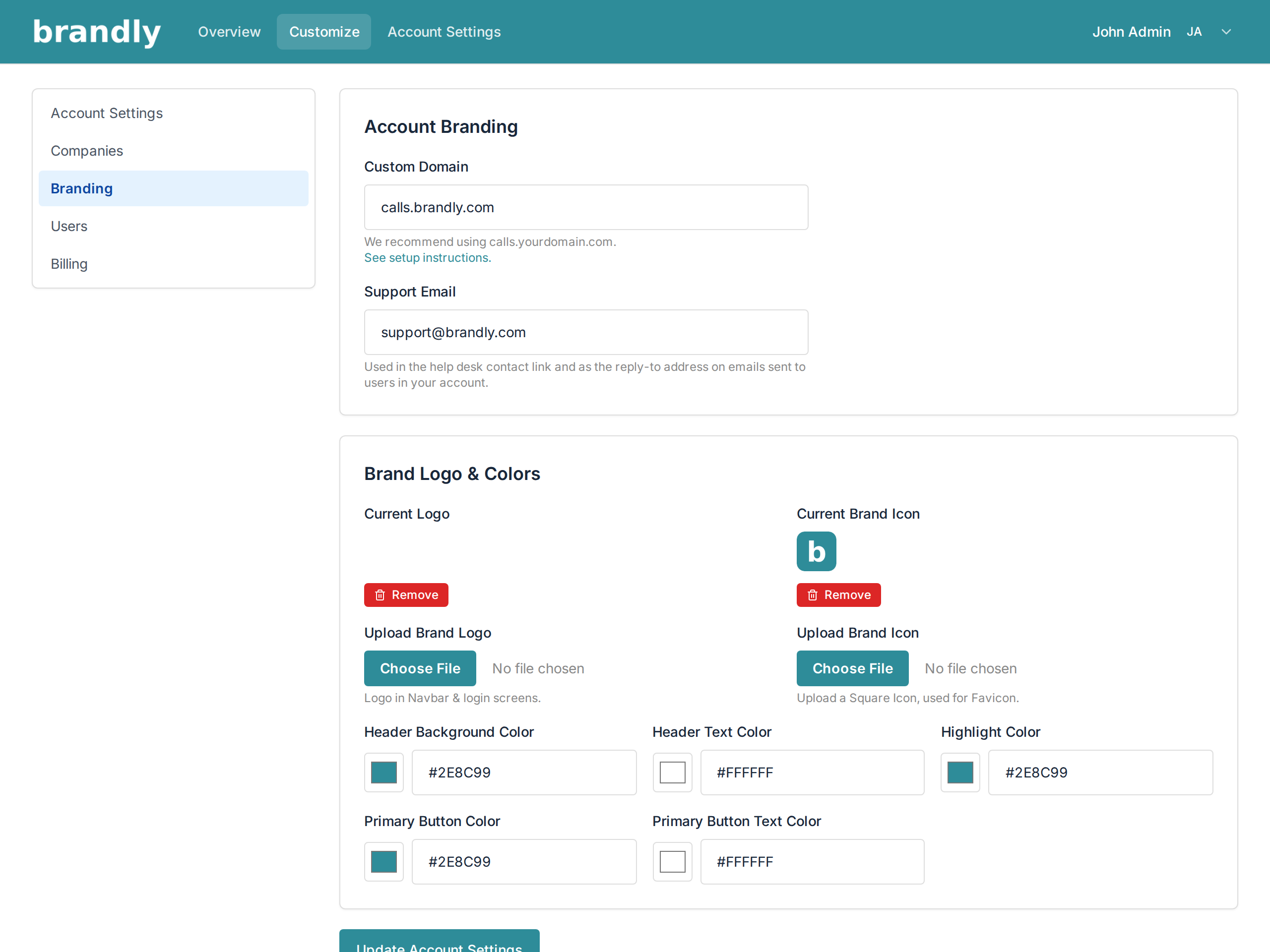
Click your name in the top right, choose Manage Account, then Branding in the left-hand menu.
Once the Agency Edition is on you also get a Customize link straight in the top navigation bar, which is the same page.
Every change on this page is saved by the Update Account Settings button at the bottom. Nothing saves as you type.
Don't see Branding? Turn on the Agency Edition first. The menu item only appears once it's on and your plan includes white label.
Custom Domain
Put your clients on calls.youragency.com instead of our address. Enter the subdomain here, then add one DNS record — the full walkthrough is in Set Up a Custom Domain.
Support Email
Your address, used as the reply-to on every email the system sends to your users, and behind the support link in the help sidebar. Without it, replies come to us instead of you.
Brand Logo and Icon
Two separate uploads, and they're used in different places:
- Upload Brand Logo — appears in the top navigation bar, on the sign-in screen, and at the top of every notification email. Use a wide logo with transparent background.
- Upload Brand Icon — a square image, used as the browser tab favicon. A wide logo squashed into this slot is unreadable at 16 pixels; crop to a square mark or monogram.
Brand Colours
Five colour fields, each driving a specific part of the interface:
| Field | What it changes |
|---|---|
| Header Background Color | the navigation bar behind your logo, and the email header |
| Header Text Color | the menu links sitting on that bar |
| Highlight Color | links, the active menu item, and focus outlines on form fields |
| Primary Button Color | the fill on every main action button |
| Primary Button Text Color | the text on those buttons |
Two pairs need checking together, because they're what usually goes wrong:
- Header Background against Header Text. A dark bar wants light text. Set a dark background and leave the text dark and your menu disappears.
- Primary Button against Primary Button Text. Same problem on every Save button in the app.
After saving, open a page as a client would see it and look at the navigation bar and one button. That's a five-second check that catches both.
Where Your Branding Shows Up
Once saved, it applies to:
- the sign-in and sign-out screens on your custom domain
- the header on every page your clients see
- call, voicemail and SMS notification emails
- user invitations and password reset emails
Your clients never reach a Call Tracker branded page.
If Your Branding Disappears
Branding is a white label plan feature. If the account moves to a plan without it, every field on this page is cleared — logo, colours, domain and support address. They aren't hidden, they're emptied, so moving back means entering them again.